App surfaces
The workspace widgets agent-core contributes: the Chat widget, the Calendar widget, and the Terminal widget.
agent-core's app/ folder contributes three workspace widgets through the
app.surfaces[] manifest declaration. For the surface contract itself
(widget/card/dock shapes, the dock-companion requirement, chrome modes) see
package-system App surfaces.
The three widgets
| Widget | id | Chrome | Notes |
|---|---|---|---|
| Chat | agent-core-chat | frameless, singleton | The primary agent chat surface; opens by default. |
| Calendar | agent-core-calendar | frameless, transparent | The workspace surface for workflows — Day/Week/Month/Year views, a live activity rail, and a template browser. Visible only to workflow.read holders. |
| Terminal | terminal | frameless, multi-instance | The xterm.js PTY terminal — managed sessions rooted in a connected filesystem source, with container and host destinations. Visible only to terminal.read holders. |
The Calendar and Terminal widgets each ship a dock companion (a workspace-rail
entry) that opens them. Chat deliberately declares dock.show: false instead —
it is opened from the workspace itself rather than from the rail.
The agent creation studio is not a widget at all. It is a workspace view: the
+ on the right dock opens it full-screen, and the same view is what an empty
project shows before its first agent exists. Configuring an existing agent lives
on the chat panel's own Agent Config section, described below.
Chat renders the active agent's configured icon and color through the one
platform icon library every dock and widget header uses. The same identity
therefore appears in Files, the workspace agent dock, and Admin Canvas; a name
outside the library becomes Bot, and a missing color comes from one stable
palette. The Agent Config section edits an existing agent's icon, color and an
optional picture: PNG, JPEG or WebP, accepted by its bytes rather than its
declared type (never SVG), and served only to members who may read that agent.
The chat timeline
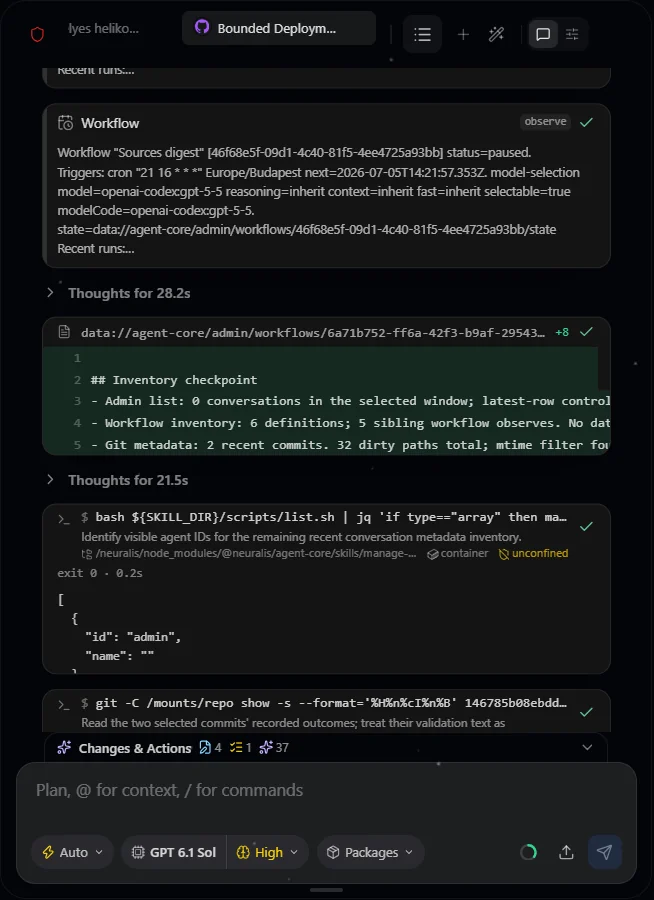
Chat in a configured installation, with conversation activity above the composer.
The Chat widget renders the streaming agent loop: the message timeline (tool
calls, thinking, approvals), the composer, the per-conversation queue, and the
attachment lane. Tool results from connected MCP servers that declare a
ui:// template render as live MCP App cards — interactive HTML in an
isolated sandbox, with app-initiated tool calls passing the same policy gate
as model calls (see MCP Apps
and the security page). An empty conversation opens on the Package Constellation —
the permission-filtered live graph of every package the agent can use,
grouped into concentric rings by trust path. Clicking a package opens a
breakdown of its contributions and lets you toggle it for just that
conversation.
The composer carries the Prompt Polish control (core.prompt-polish): a
one-shot LLM rewrite of your draft (translate + improve at three escalating
levels) before sending.
Type @ for files, folders, and resources or / for commands and skills — the
popup is keyboard-navigable (↑/↓ to move, Enter/Tab to pick, Esc to
close) with a faint inline completion of the top match you can accept with
Tab. Completion follows the cursor, not the end of the draft: typing
/goa in the middle of a sentence opens and filters the menu even with text
after the cursor, a pick replaces only the typed /goa run (the surrounding
text is untouched), and moving the cursor away closes the popup. Path-like
fragments (foo/bar, URLs) never trigger it. Picks and uploads insert where
your cursor is, not at the end of the draft, and a multi-file upload lands as
one ordered insert. The editor disables the browser's native spellcheck and
autocorrect — code, URIs, and multilingual prompts stay free of red squiggles.
Attachments arrive three ways — the upload button, drag-and-drop, and
paste an image (Ctrl+V), which uploads the image to the conversation's
files instead of embedding raw binary. Pasted text is always inserted as plain
text. A large text paste (roughly a thousand characters or eight lines and
up) collapses into a compact chip — Pasted text · ~12.4k tokens — so the
composer stays readable; the full text is still sent with your message and
appears in the sent bubble (the chip is a composer-only view, and the token
count is an estimate). A queued message shows the same compact preview in the
Queue tab while the full text is what gets dispatched. The chip lives for the
browser session: after a full page reload an unsent chip expires and is
dropped from the outgoing message rather than sending partial content. A
platform admin sets the client-side paste size caps (default 25 MB per
image, 500k characters of text) in the platform configuration; these guard the
clipboard only and do not affect how much file or connector data a tool like
fs_read returns. Files added before the first message are kept in a private
staging area and moved into the conversation's own folder when you send.
The composer also carries the guard profile chip (Safe / Balanced /
Auto) — how aggressively the agent asks before running tools. A pick applies
to the current conversation immediately (and to a live stream mid-turn), and is
also saved as the agent's default profile, so it survives a browser refresh
instead of resetting to Balanced. That default is shared per agent, not per
user: only members who can edit the agent's configuration set it; for everyone
else the per-conversation choice still applies but is not persisted. The
resolution order is per-conversation choice, then the agent default, then the
platform default (Balanced).
Focus mode gives the timeline the whole widget. Hover the composer's
bottom edge and click the handle (or type /focus): the conversation tab bar
slides away, leaving only the agent's icon in the top-left corner, and the
composer folds to its input line — Stop, the queued-send button, upload, and
Prompt Polish move inline beside it; the model, guard, packages, goal, and
summary controls stay available as slash commands, and the status banners and
the Changes & Actions strip stay where they are. Only the context-window meter
(with its auto-summary threshold and summary focus) is one restore away.
Restore with the handle next to the agent icon, the handle on
the composer's edge, or /focus again. The summary bar above the timeline has
the same treatment: its own handle folds it up out of the way in either mode, a
handle centered under the tabs brings it back, and entering focus mode folds it
too (leaving focus does not unfold it). Both choices are per agent and last
for the browser session; the config view always keeps the header.
Above the composer, transient status banners surface stream events — errors,
stopped responses, and context-window limits keep a Continue action (context
limits also recommend Summarize now). A response the PLATFORM interrupted —
a restart or an unexpected stop — gets its own banner, derived from durable
conversation state rather than in-page memory, so it survives a reload; the turn's
own author has it continued once automatically, while other participants get the
manual action. Alongside those sits an interrupted-and-recovered notice, and,
for Codex subscription sign-ins, a brief usage-limit warning when usage crosses
80/90/95/99% (it auto-dismisses; the precise figure lives in the config Usage
Signal panel below). The chat config panel's Usage Signal card shows recent
spend per model and, for Codex, a usage-limit bar per reported window — each
labelled by its real duration (e.g. 5h, 7d). Under the totals it states what
the money means: the figures are estimates priced from the model catalog's list
rates, and its count metric reads Usage rows because one row is one model's
share of a turn. The card refreshes once when you
open it and then updates live from the stream (no background polling); if the
on-demand read is unavailable it shows the last cached reading.
Conversation history
The list icon in the chat header opens the conversation history — every conversation for this agent you may see (by default the ones you started; owners and admins see all), not just the ones with an open tab. It docks to the right edge of the chat panel and stays within it, so it never covers a neighbouring widget, and it is height-bounded to the panel: opening it shows the whole list rather than running off the bottom behind the composer.
Search by title, then narrow by time (Today / This week / This month), by
origin (Interactive / Workflows), and — in a shared project — by
participant. The list opens on This week; All widens it. Rows are grouped
into Today / Yesterday / This week / Older.
Each row summarises the conversation at a glance: a live run-status dot, the
participants, the relative date, session count, and a chip strip carrying the
cost first, then the file changes (+N/-M · Kf), tool actions, subagent
runs, forks, how many times the conversation was compacted and how many
times it was summarized (with the latest mode), the last model used, total
tokens with the prompt-cache hit rate, and the last context-window occupancy.
A conversation summarized before the platform tracked the count shows the mode
without a number rather than a guess.
A conversation that has children — forks and subagent (delegate) runs — gets an expander. Forks open as ordinary conversations; a subagent run opens its full child transcript over the timeline, the same read-only sub-timeline the Delegates tab opens. Subagent runs are not separate conversations: they live inside their parent's folder, which is why they appear nested here rather than as top-level rows. A fork stays reachable through its root even when only the fork matches your search.
Hovering a row reveals two actions: open the conversation's folder in Files,
and delete — with an explicit choice between removing only the chat
(meta.json + transcript, keeping plan.md and other artifacts) and removing
the whole folder.
Cards in the timeline
Structured tool results render as cards. Not every call becomes one:
read-only, idempotent calls collapse into a compact explored summary, and a
card appears when the tool asks for one, or when a call stops for an approval or
a question. Built-in cards cover the platform's own tools (shell and skill runs,
filesystem changes, todos, questions, delegate runs, workflows); a package contributes a
card for its own tool through the
App-surface contract — an HTML entry the
host serves into a sandboxed, opaque-origin frame and feeds over the bounded,
strictly one-way card-data channel. That entry is self-contained by default;
declaring assetMode: "bundle" has the platform serve its sibling files too.
The channel is owner-gated: a card bound to a foreign package's tool receives a
generic placeholder, never the real input or result. A card's header status is derived from the tool's
actual outcome, so a finished call settles to a check even when its payload
carries no explicit status field — one indicator per card, with the exact status
word as the icon's accessible name.
A shell card carries its run context on one line: which source the command ran in, its full working directory, and two chips that answer two independent questions — where it ran (inside the platform container, or on the operator's own machine through the host access broker, or on a source connector such as Webtop) and under what confinement (OS-sandboxed, or unconfined for a caller granted the unrestricted container shell; connector results make no app/host confinement claim). Old rows without a plane retain their container label. A stopped connector call means the wait ended, not that the remote process was killed. Expanding the card shows the whole command and the full path, however long they are.
Interactive cards — MCP Apps and package iframes — are retained. The timeline is virtualized, so their rows are deliberately kept mounted while the conversation scrolls: the frame keeps its browsing context and its state instead of reloading every time it leaves the viewport. Retention is bounded per chat panel — when the budget is exhausted the oldest idle view is torn down first, and a visible, in-flight, or approval-pending view is protected from that eviction. Stream pacing, retention, and the host's single multiplexed realtime hub are host-owned: a card should not open its own event stream or run its own scheduler.
An MCP App card carries one more lifecycle step. During a live turn its first render waits for the turn to settle, so the app mounts once rather than needing a manual refresh; from then on it holds a short-lived View lease that authorizes every call it makes back to its own server, renewed by a heartbeat and torn down cleanly when it expires or the card goes away. See MCP Apps and the security page.
A delegate card shows a bounded live view of its child run — a capped projection with an explicit trim marker, never the child's raw event stream — while the complete transcript stays one click away as a read-only sub-timeline. A subagent that ran in the background reports back with a card of its own, titled Background report so it is never mistaken for a message you typed or a call the agent made — the platform wrote it when the run finished. It carries the same summary, duration and transcript link as any other delegate card. When an inner tool of the child stops for approval, the delegate card morphs into that tool's own card with the approval footer attached. Repeated live frames update that inner tool's existing row instead of duplicating it. Shell execution cards remain compact on failures, while a todos card renders at full height in the timeline — sized to the list it actually wrote — and can be collapsed by hand, with that choice remembered for the row even after it scrolls out of view. A refused todos call shows only its error, never the goal or steps it tried to write. Changes & Actions shows the same plan as a dense checklist instead — its own compact rows, read from the same data the card renders, with the session goal and its done-conditions above them; a refused call that wrote nothing leaves that checklist as it was.
A workflow card is a small ticket for the workflow the call touched, drawn like its block in the Calendar: its colour and icon, when it fires (with a seven-day strip of its next fires), and its settings at a glance. While the call waits for your approval, the card already shows what it proposes — for a change, the old and the new value side by side — and nothing is saved until you approve. A run it started updates live on the workspace's one realtime connection, from queued to its result. A card that read a workflow shows its recent runs, and a listing shows one mini-ticket per workflow. A call refused outright shows only the refusal; when one part of a call was refused, the card names it beside what did land. Its buttons — Open in Calendar, Activate for a draft, Stop run and Transcript — appear for whoever is looking at the conversation according to their own permissions, not the permissions of whoever made the call. A card that shows only a run names its workflow in its header and opens that run's Transcript like any other shape.
Its Delegates tab lists a conversation's subagent runs in three groups —
running, needs approval, and done — and the same list appears nested under the
conversation in the history dropdown, from one renderer rather than two that can
drift. A finished run shows what it cost beside its step count, with the tokens
and the model it ran on a hover away; a run whose spend was never recorded shows
nothing there rather than a misleading $0.00. Needs approval is its own group because a parked subagent is the only one
that needs a person: it used to sit in done wearing the finished colour, which
read as a successful run. That group shows the real card, not a summary row — the
inner tool's own card with its Approve / Deny footer, exactly what the timeline
shows — so a decision can be made without leaving the strip. A background run also
carries a Stop, and while anything is still moving the list refreshes on its own;
once every run has finished it stops refreshing, because the answer can no longer
change.
When any variable-height row above the viewport changes, the timeline preserves the visible scroll anchor, including during fast upward scrolling. A row can be sized to its content without the list jumping because each card declares how tall it is rather than the timeline guessing from a central table: the guess and the render come from the same data, so the first real measurement usually confirms it. A card that says nothing gets a safe default, and a card whose estimate is wrong or unusable never breaks the list — the value is bounded and falls back.
The Changes & Actions panel above the composer follows the same principle: each card declares which tab its activity lands on and how its file changes are read, through the same registration (or, for manifest-only iframe cards, a declarative subset on the card surface) — see Composer aggregation. The built-in filesystem card declares its own contract from its own package; a card that declares nothing lands on the Actions tab with a generic chip.
A subagent's own tool calls land there too, read from the same bounded live view its run card draws — so the panel and the timeline cannot disagree about what a turn did. Two limits worth knowing rather than guessing at: the entry names the tool the child ran, not the file it touched (that live view is also what the model reads, so it deliberately carries no tool input), and a run that was sent to the background contributes nothing here at all — nobody is streaming it, so there is no live view to read.
Agent Config and setup context
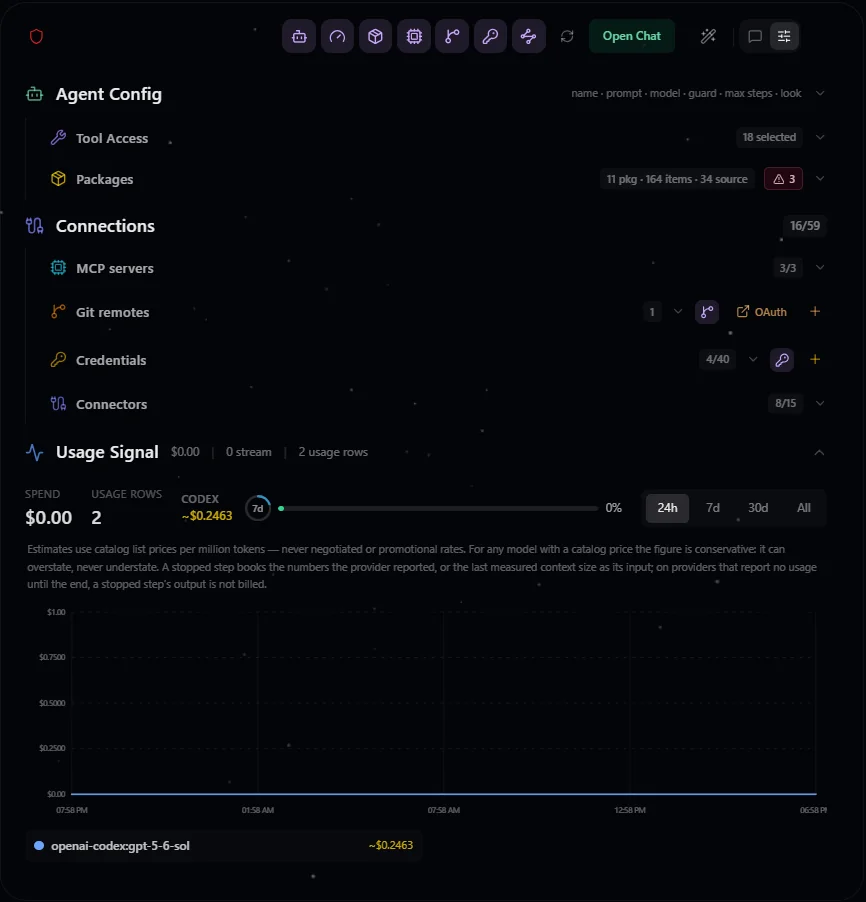
Agent Config in a configured installation. Available choices follow the current agent and project grants.
The config view starts with Agent Config. Its compact prompt editor stays
expanded and has no disclosure control, while keeping the persisted template
versus custom mode intact: inherited agents show the real shipped default in
muted text and automatically follow later app updates; custom agents keep their
own text. Customize and Reset join the existing
dirty/Save flow, and saving an empty custom draft returns to inherited mode.
Inside the expanded card, Agent setup context explains the exact
conversation-independent stable subset the agent receives. It shows exact
UTF-8 bytes, estimated tokens (ceil(bytes/4)), model-context percentage,
identity/rule/instruction/pinned-doc counts, enabled versus visible packages,
and the effective tool catalog after package, feature, policy, and Tool Access
gates. Each section and contribution has a plain-text preview. The exclusion
disclosure names live-turn additions such as history, hooks, the <session>
block, workspace-live data, attachments, and provider wrappers; this keeps the view
truthful without pretending to be a complete conversation prompt.
Config actions live in the fixed header where conversation tabs normally sit: Inspect Agent Setup, Manage Agents, refresh, and Open Chat. Saving agent, tool, or package settings refreshes the snapshot; there is no polling stream.
Deleting an agent
The chat panel's Agent Config section closes with a Danger zone carrying a confirm-gated delete. It removes the agent together with its conversations, files, memory and workflows, and it cannot be undone. Every deletion is written to the project audit trail against the identity that performed it, whichever surface it came from — the config card, the Admin Agents tab, or an agent running the agent-management skill.
Deleting the agent you are looking at moves the workspace to another agent in the project, or back to the agent creation studio when it was the last one; the widget layouts you arranged for the other agents are kept. The project record's ownership entry for the deleted agent is cleaned up server-side by the same act, so an agent later created under that id does not inherit a stale assignment.
The control appears only for callers the server says may delete this agent, and that answer comes from the same check the deletion itself runs, so the button can never offer something the server would then refuse. Hiding it is not the gate: the server decides on every call regardless. A refusal reads the same whether the agent does not exist or you simply may not delete it — one answer, so the error cannot be used to discover which agents exist in other members' scopes.
Who may delete depends on the role's agent scope. A role with own scope
covers the agents you created as well as any assigned to you; see
agent scoping.
The agent limit
A project holds at most maxAgentsPerProject agents (default 100, an
admin platform setting). Once the project is
full the next create is refused with a message naming the limit, and a batch
create that would cross it is refused whole rather than filling the remaining
seats — so a refused batch leaves the project exactly as it was. Raising the
setting applies to the next create, with no restart.
The limit applies to every route that creates an agent, which today is every way an agent can be created. Internal platform provisioning is exempt from it, so a future automated provisioner is not bound by a tenant's own setting.
Tool Access (per-agent tool selection)
The agent config view's Tool Access panel narrows which tools the agent may use. Semantics:
- Default-on. A fresh agent (or one saved with every tool checked) runs in all mode: every tool the caller's packages and features expose is available, including tools that arrive with packages installed later. All is a claim about the whole catalog, so the panel will not save it from a partial view: when tools are withheld from you — by a feature grant you do not hold, or by a package outside your scope — saving keeps an explicit allowlist instead. Otherwise a narrow selection that happened to cover everything you could see would silently widen to include everything you could not.
- Custom = a frozen allowlist. Unchecking any tool and saving stores an explicit selection; a deselected tool is removed from the model's function list at stream time (and a hallucinated call to it is rejected), across chat, delegate subagents, and scheduled workflow runs. A tool shipped after a custom save stays off until the selection is re-saved.
- A single tool can be switched off without leaving all mode — through the
API or the
manage-agentsskill, which is where that state is written; the panel itself always leaves all mode when you untick something. However it is written, it is honoured everywhere the allowlist is: the model's function list, the<packages>block (where it reads[OFF], so the agent knows the capability exists and is switched off) and the rejection of a call to it. - Narrowing-only. The selection can only remove tools — it can never re-enable a tool hidden by a disabled package or a missing feature grant. Deselecting everything leaves the agent conversational (text-only), not broken.
- One source per contested name. When two or more sources offer a tool with the same name — two packages, a package and one of the platform's own tools, or an MCP server — the panel shows the name once, with a picker of its sources. By default the platform's own and first-party tools answer; a pick applies to this agent only, and picking the default again clears it. A pick whose source later disappears is ignored, never an error. An approval runs on the source it was asked for: if the pick changes before the approval, the approved call is refused rather than run somewhere else.
- Agent-wide, saved from the editor's view. The allowlist applies to every caller of the agent, and it reflects the catalog the saving editor could see — a feature-limited editor's save can therefore narrow tools they cannot see for other callers of the same agent.
This is the ONE place an agent's own STORED tool set is narrowed — its ceiling.
A single run can narrow further inside that ceiling and never past it: a
delegate call's tools / blocked_tools, a persona's own declared list, and a
workflow's tools_off each bind one run only. The Hosted MCP selection is a
different question — which tools the agent exposes to outside MCP clients — and
it binds that outward surface only: unticking a package there changes nothing
about what the agent itself can do in its own chat.